01 / What the screens show
Screen by screen
Captions to the module screens: briefly what each one shows and why.
- 01
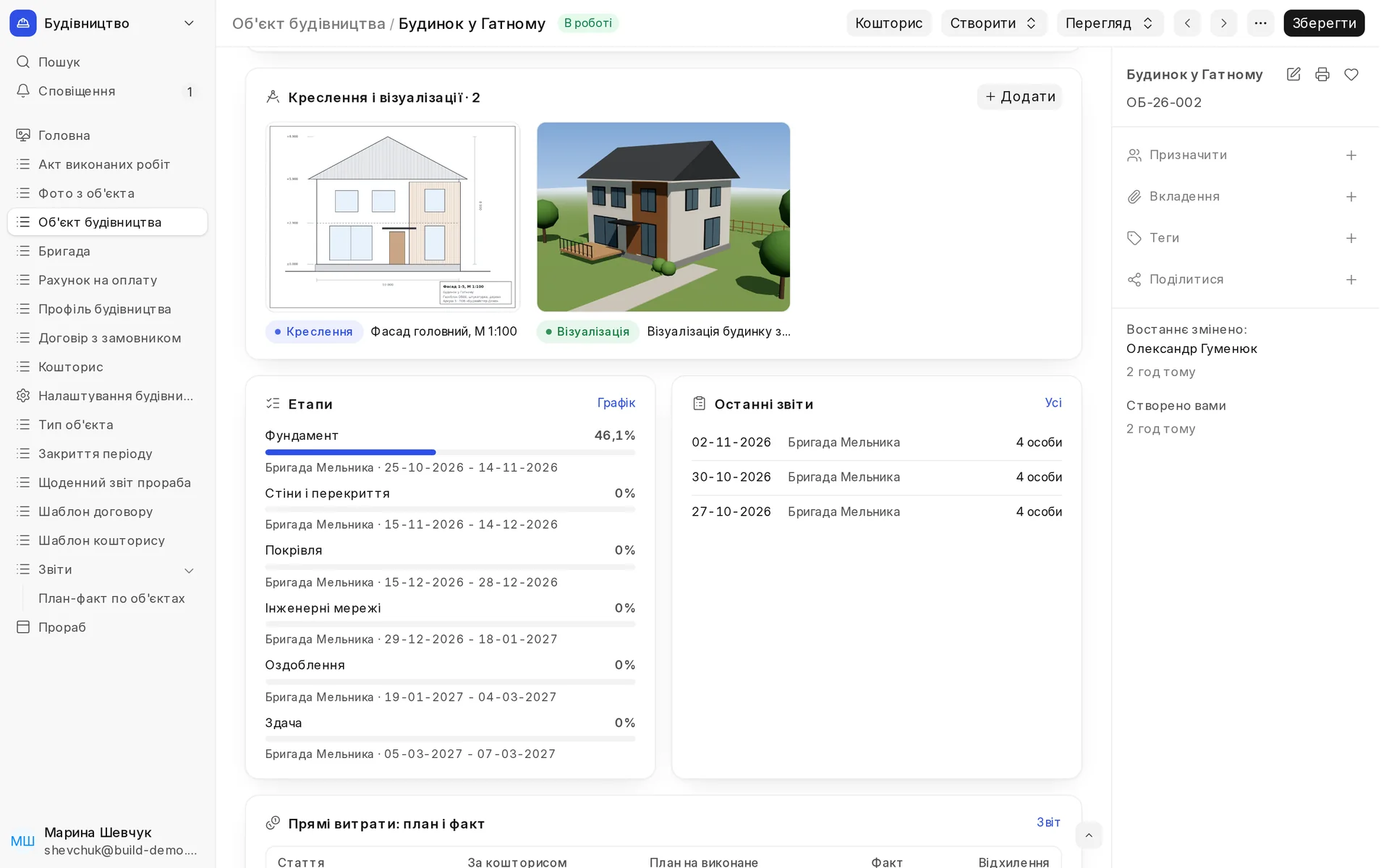
The "House in Hatne" site card: the facade drawing and the house render right in the card. Below are the stages with progress from foreman reports, the crew and dates, and on the right the latest daily reports.
- 02
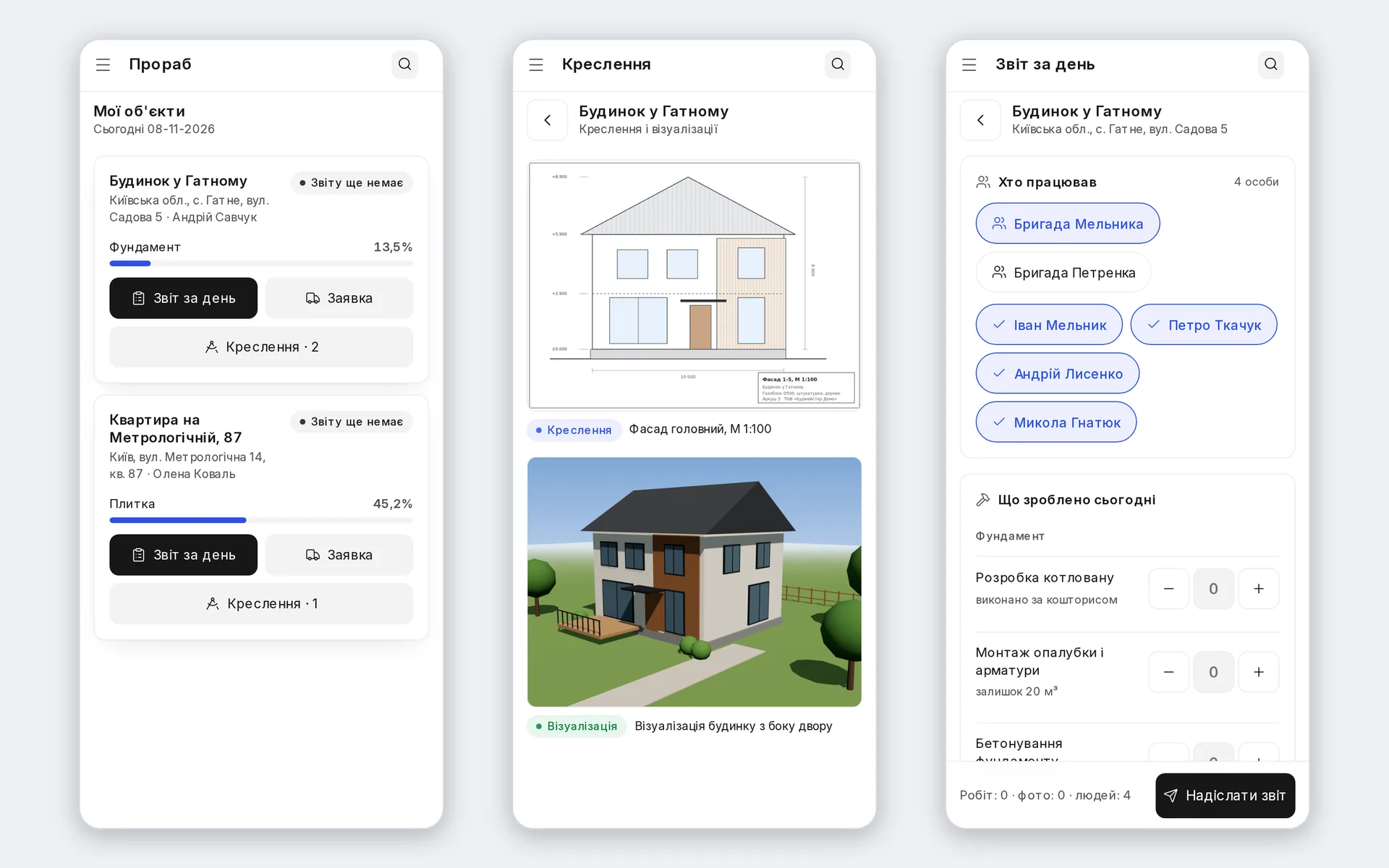
The foreman on the phone: "My sites" with progress, the site drawings at hand on the building site, and the "Daily report", where he marks who worked and how much was done on each estimate line.
- 03
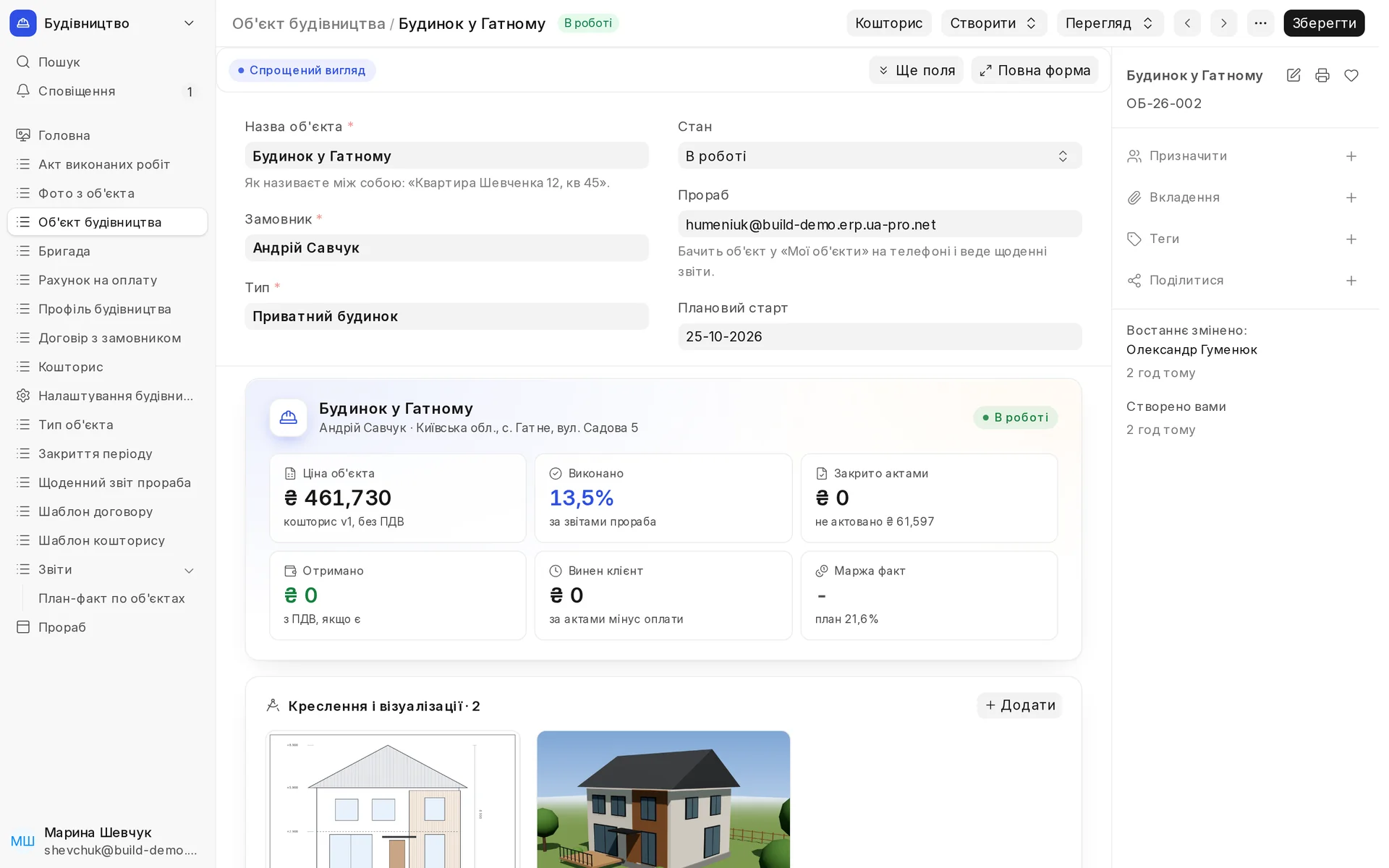
The site panel: the estimate price, how much is done, what is closed by acts and what is not yet in an act, how much was received, how much the client owes, and planned and actual margin.
- 04
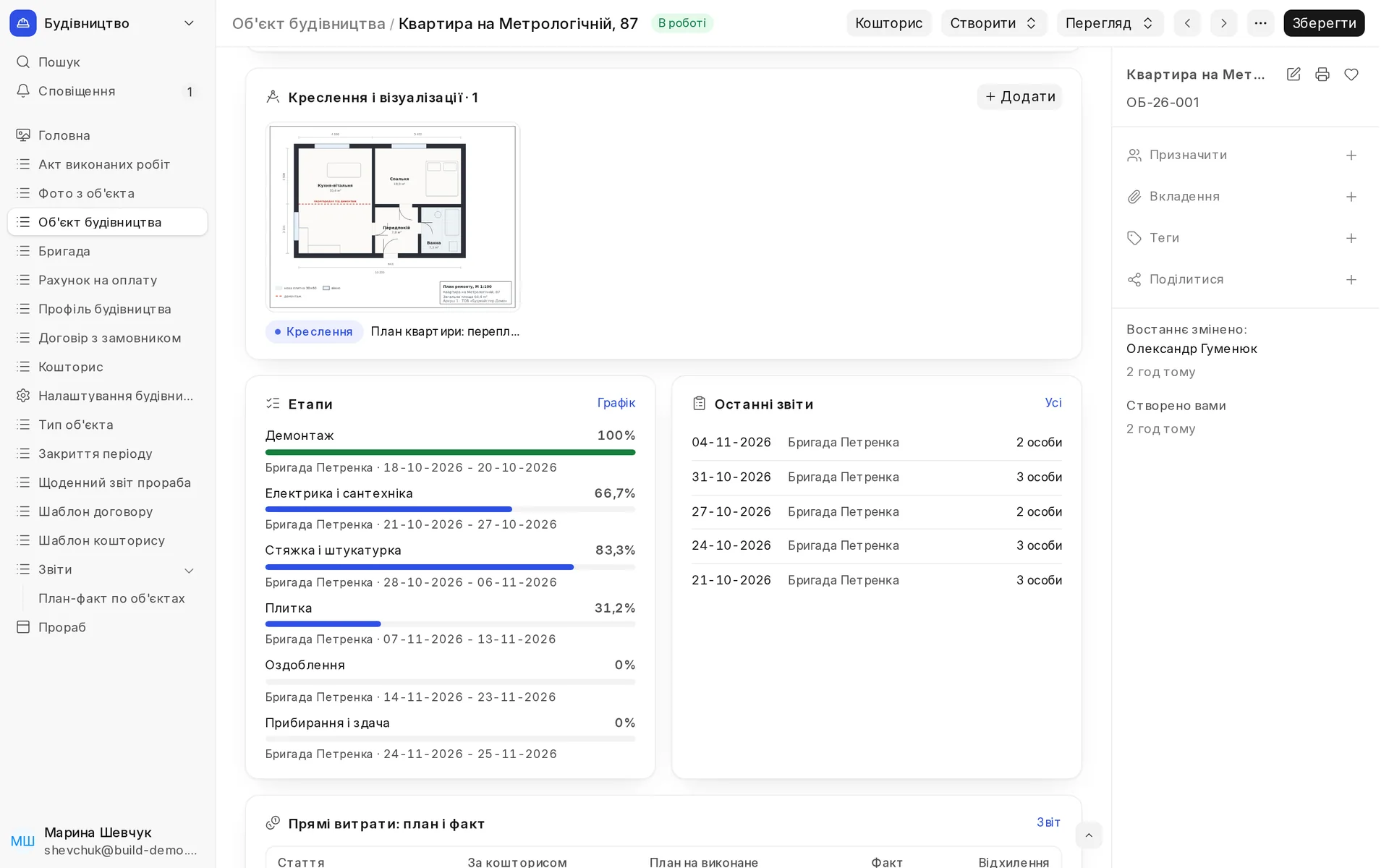
Flat renovation on Metrolohichna street: the floor plan with the redesign in the site card, stages from demolition to handover with completion percentage, and the crew's daily reports.
- 05
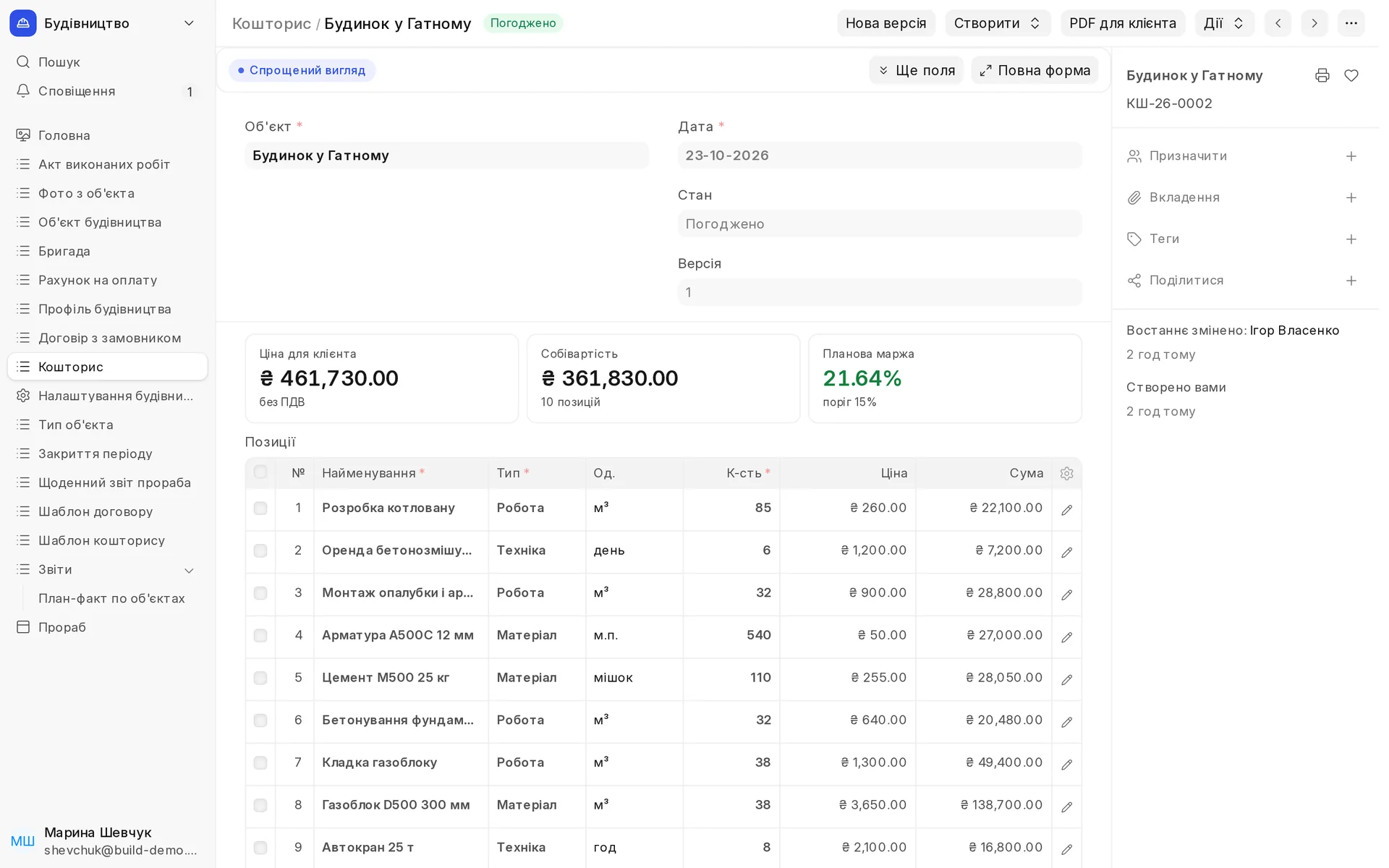
Estimate: labour, materials and equipment with units and prices. You see at once the client price, the cost and the planned margin against the threshold from the settings.
- 06
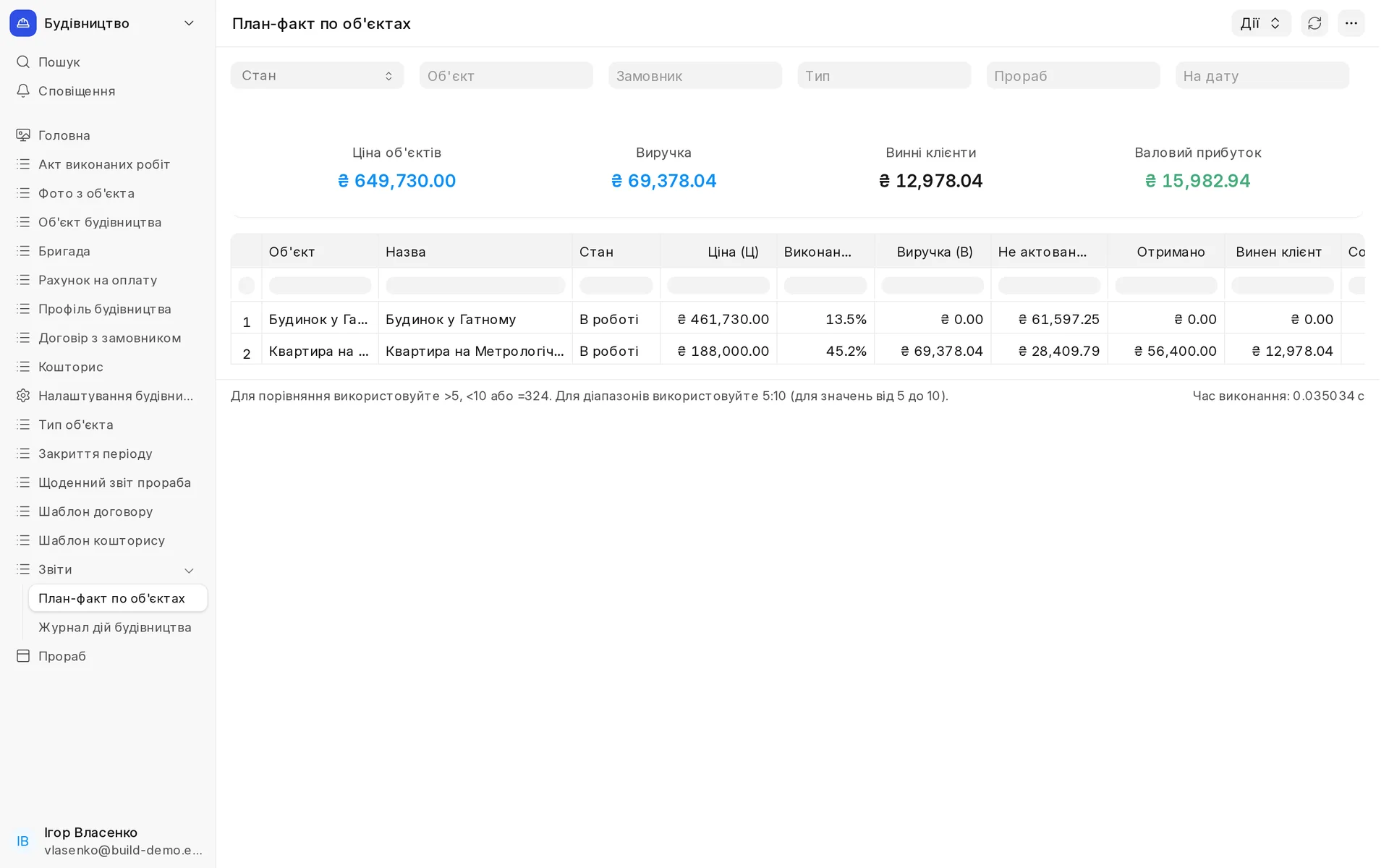
The "Plan vs actual by site" report for the owner: price, completion, revenue, not yet in an act, received, client debt and gross profit for each site.
- 07
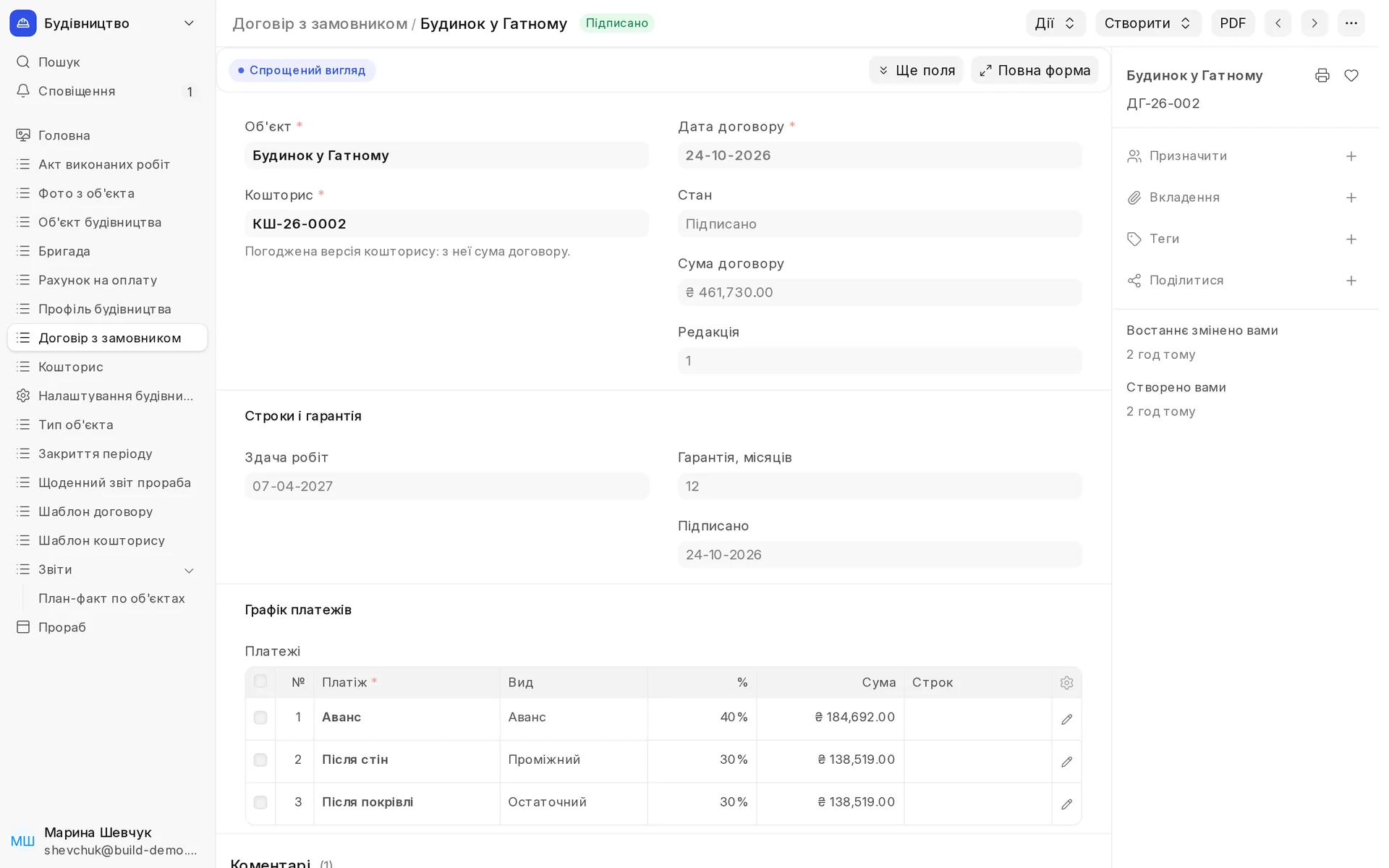
The client contract from the approved estimate: amount, deadlines, warranty and payment schedule. With the document signing or Vchasno modules, the contract and act are signed with a qualified e-signature via QR or in Vchasno; without them they are marked as signed manually.
02 / How it works
From estimate to site handover
- 01
Estimate
Labour, materials and equipment with units and prices: with the builder from room sizes, from a template or from Excel. The client price, cost and planned margin are visible at once; an estimate below the margin threshold is approved by whoever is allowed to in the settings.
- 02
Contract
The amount comes from the approved estimate version, followed by deadlines, warranty and the payment schedule: advance, interim payments, final payment. An invoice is created from the schedule, and changes are made as a new contract revision.
- 03
Foreman report
Every day from the phone: which crew and who exactly worked, how much was done on each estimate line, photos and the materials used. If there is not enough material in stock, this shows at once, and you can create a request for the shortfall.
- 04
Site requests
Concrete, delivery, waste removal, equipment: the foreman picks the request type, quantity, date and time. The manager schedules the supplier and the price, the foreman marks "Arrived" with a photo of the delivery note, and the cost goes into the supplier invoice.
- 05
Act and payment
The act of completed work takes volumes from the foreman reports for the period. The act creates a sales invoice, and advances are offset. Money received is booked as a payment linked to the site project.
03 / Estimate builder
An estimate from room sizes with your price list
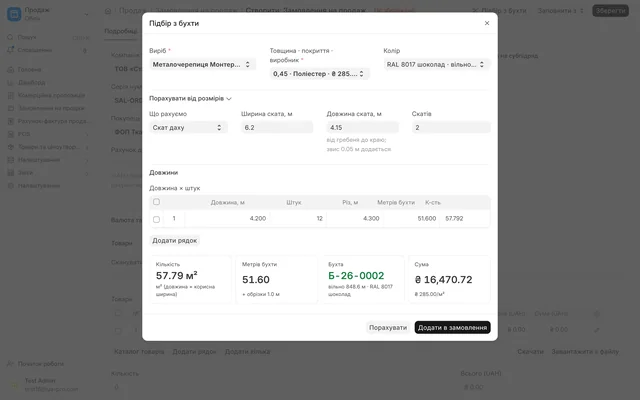
You enter rooms and works; materials, packs, delivery and price are calculated automatically.
- 01
Rooms
Length, width, height and the area of windows and doors. Floor area, wall area and perimeter are calculated automatically; for an irregular room you enter the area and perimeter.
- 02
Works from the price list
Pick a work by name or code, and the quantity comes from the sizes: "Walls", "Floor", "Perimeter * 0.6". You can also type the quantity by hand.
- 03
Materials and services on their own
Based on the work norms: plaster in 30 kg bags with waste, tiles in boxes, delivery once per stage, waste removal by volume.
- 04
Price and margin at once
On the right: the client price, cost, margin against the threshold and exactly what goes into the estimate. On the phone the total sits in the bottom bar.
- 05
Recalculation without losses
Before saving you see what will be added, changed and removed. Lines entered by hand stay, and completed volumes and acts are not lost.
- 06
Templates
"Turnkey bathroom" or "Kitchen": a room's works are saved as a template and applied to any room using its sizes.
04 / Price list
Your own prices, norms and markups
Dated prices: a new supplier price is added as a row with a date, the old one stays in the history, and an estimate takes the price for its own date
Groups and markups: "Plastering", "Tiling", "Materials": each group has its own markup and estimate stage
Excel: a template with examples, export of the whole price list and import: if even one row has an error nothing is saved, and you see the list of rows
Purchase prices hidden: cost in the price list is seen by the owner, the manager and accounting; the foreman does not open the price list
05 / Drawings and renders
Facade, floor plan and render always at hand
Everyone works from the same drawing the client approved: the manager in the office and the foreman on site.
- 01
Block in the site card
Drawings and renders are shown as large previews with a caption and a type label, separately from the daily photos.
- 02
On the foreman's phone
On the site card, the "Drawings" button with the number of files opens a separate drawings screen that is handy on site.
- 03
Site photos
Photos from reports are kept in the site history with the date. Each record has a type: photo, drawing or render.
- 04
Who adds them
The "Add" button is available to whoever is allowed to create site photos. The foreman opens the drawings from his own phone.
06 / Money per site
How much you earned on each site
- 01
Site panel
The site price from the estimate, how much is done according to foreman reports, what is closed by acts and what is not yet in an act, how much was received, how much the client owes, planned and actual margin.
- 02
Plan vs actual by site
A report for the owner: price, completion, revenue, not yet in an act, received, client debt and gross profit for each site, with filters by status, client, type and foreman.
- 03
Direct costs
In the site card, costs by category: how much per the estimate, how much there should be for the work done and how much actually, with the deviation.
- 04
Cost is not for everyone
Cost, margin and crew rates are seen by the owner, the manager and accounting. The foreman and the supply person work with volumes and stock without money.
- 05
Crews and rates
Crews with rates that apply from a date: a rate change does not rewrite past reports.
- 06
Period closing
After a period is closed, neither a payment, an act nor a foreman report can be posted back-dated. Only the roles set in the settings can lift the lock.
07 / Signing
Contract and act with an e-signature or manually
Qualified e-signature via QR: with the "Document signing (QES)" module: the signer scans the QR and signs the contract or act with a qualified electronic signature
Vchasno: with the "Electronic document exchange: Vchasno" module: the document goes to the client in Vchasno, and the signing status comes back to the ERP
Result in the card: the e-signature status is shown in the document, and the signed PDF and the archive with signatures are attached to the site
Without signing modules: no e-signature buttons are shown, and the "Signed" or "Signed by client" mark is set instead; the method is chosen in the settings
Module limits
The estimate is calculated with your own prices and norms, which you enter or load from Excel: the module does not pull in state resource norms and does not replace estimating software for public tenders. The electronic signature works only when the document signing module or Vchasno is connected on the site.
08 / About the module
Construction and renovation
For renovation and construction contractors, from a crew of a few people to a company with several site managers. Estimates with sections, cost and markup: a builder works out labour, materials in packs and related services from room sizes and your price list; templates, Excel import, versions with a reason and a client PDF without costs. An approved estimate becomes a contract with a payment schedule, advance invoices and certificates of completed work with advance offsets. The site manager files a daily report from the phone in 1-2 minutes: work volumes, who was on site, photos, materials written off, and opens the site's drawings and renders right there. The site manager orders concrete, material delivery or waste removal from the phone in a few taps, the office manager schedules the supplier and the time, and after arrival the cost goes into the supplier invoice and plan vs actual. The owner sees plan vs actual for every site: what is done, what is written off, who owes whom and how much was earned, while margin and rates are visible only to those allowed. The contract and the certificate are signed with a qualified e-signature (QES) via QR or through Vchasno, and the signed PDF and the signature archive land in the site card.
Area: Manufacturing. The module is switched on and off for each company separately, with no per-seat licences.
09 / Questions and answers
About "Construction and renovation"
Can the foreman work only from the phone?
Yes. The foreman has a "My sites" screen with progress and buttons: daily report, site request and drawings. The report is filled in with plus and minus buttons on the estimate lines, and a request for concrete or waste removal takes a few taps.
Can I upload my own price list?
Yes. The Excel template has three sheets: rates with prices, material norms and related services. After import new prices go in as a row with a date, and if any row has an error nothing is saved.
How is the quantity of materials calculated?
From the work norm in your price list and the room sizes, plus the waste percentage, rounded up to whole packs: 511 kg of plaster becomes 18 bags of 30 kg.
Can an estimate be moved over from Excel?
Yes. The file template is downloaded with a button, after import you see the lines with errors, and nothing is saved until all lines are correct. There are estimate templates for typical work.
How do I sign a contract with the client?
In two ways: a qualified e-signature via QR code through the "Document signing (QES)" module, or through Vchasno with the electronic document exchange module. Without these modules the contract is marked as signed manually.
Who sees cost and margin?
The owner, the manager and accounting. The foreman and the supply person see volumes, stock and materials, but not crew rates or cost.
What if the client changed the scope of work?
You create a new estimate version, approve it and make a new contract revision. Earlier versions stay in the history.
Updated:
10 / Other modules
More modules on video
The same, on your data.
The screens were captured on a demo company. Send us a sample document or order and we will show this module on it.