01 / What the screens show
Screen by screen
Captions to the module screens: briefly what each one shows and why.
- 01
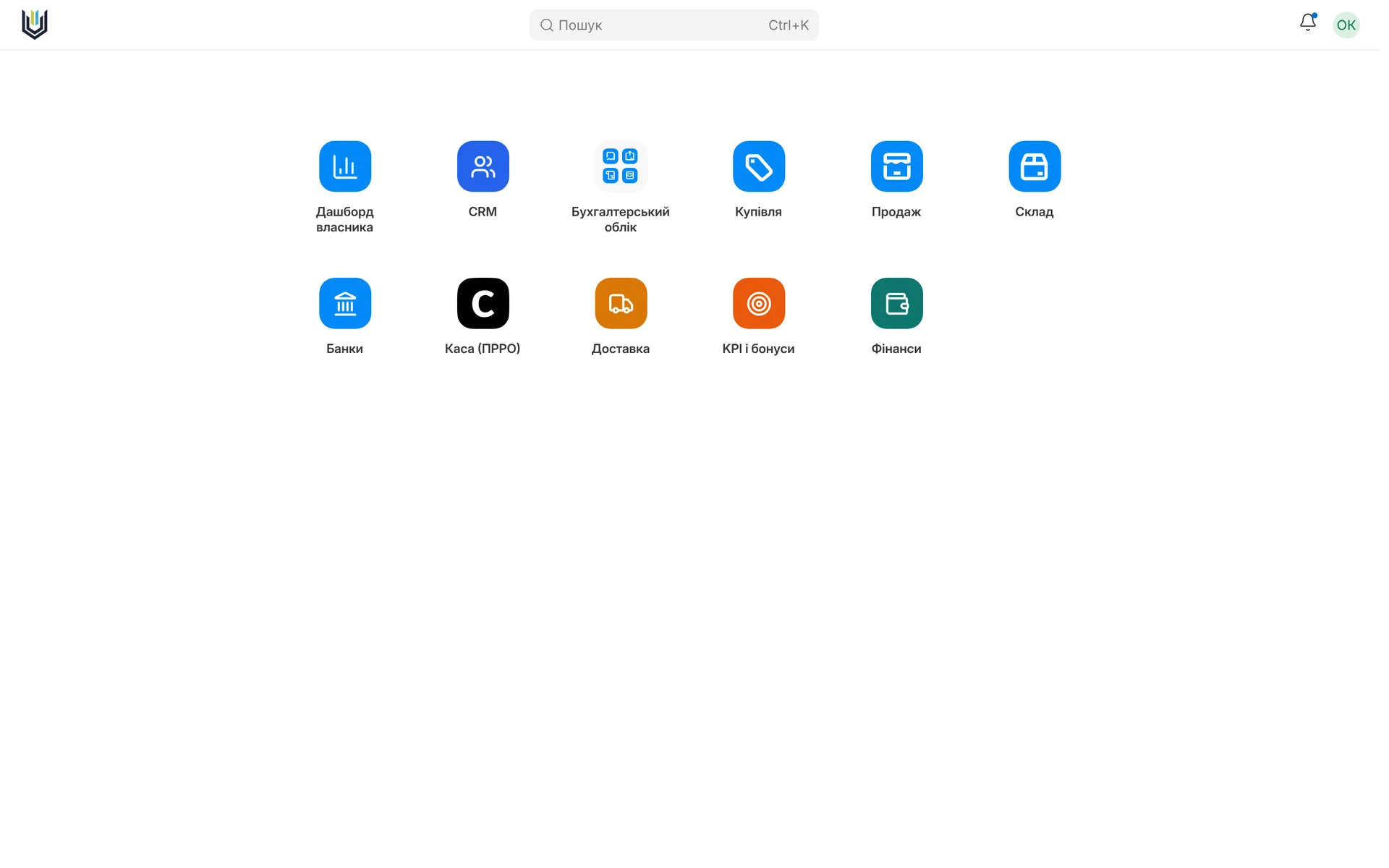
Owner's desktop: the "Owner dashboard" comes first, next to CRM, sales, warehouse, finance, banks, cash desk and shipping.
- 02
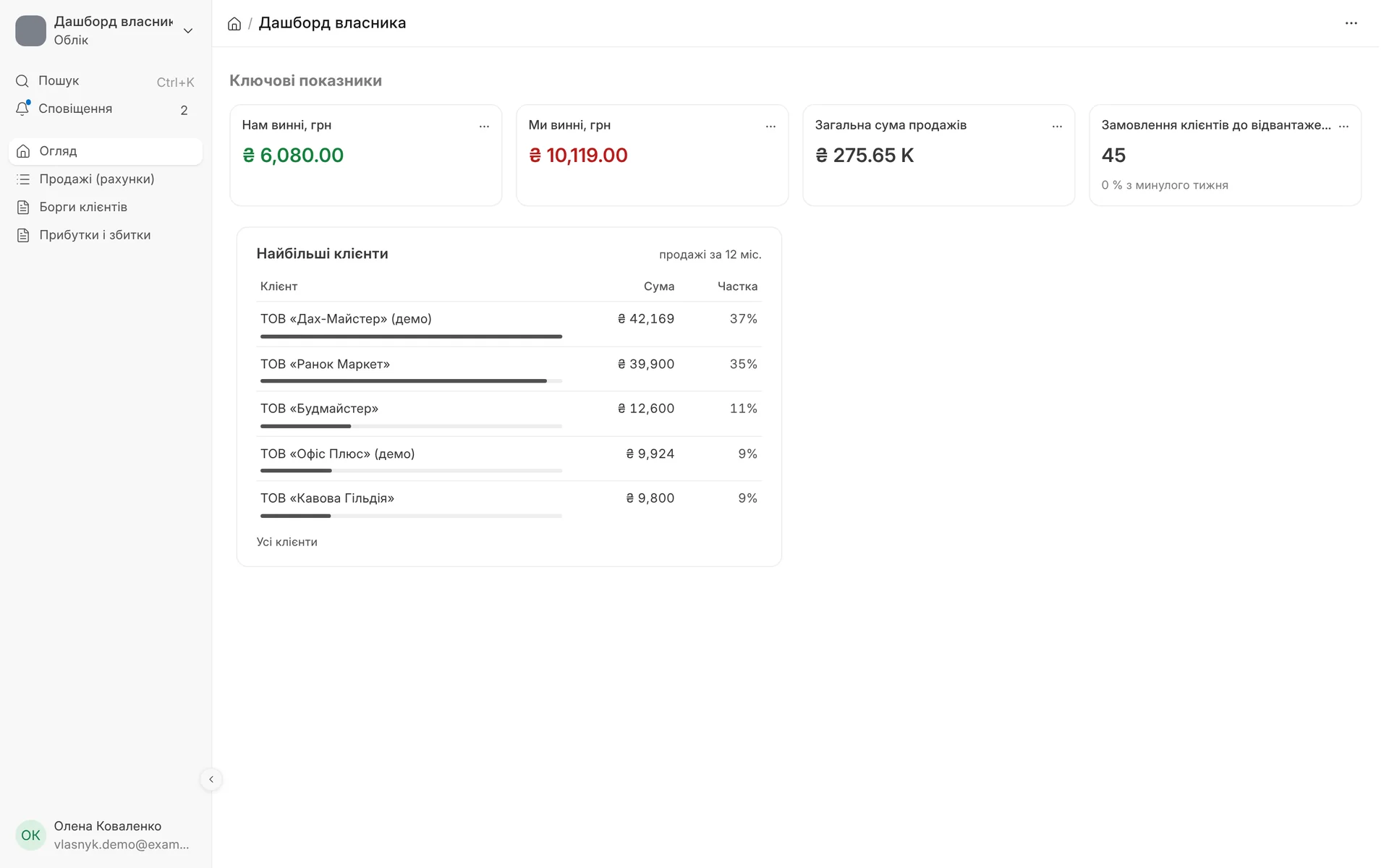
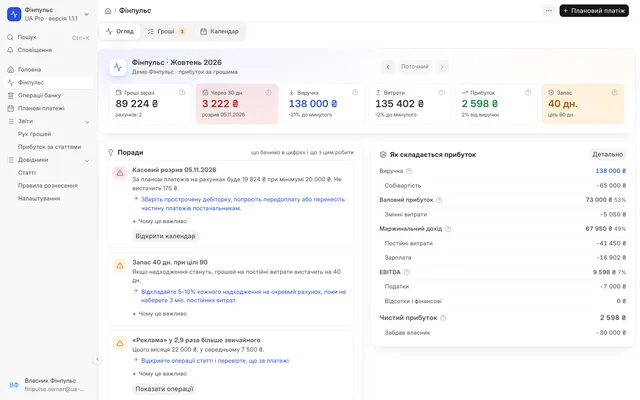
Owner dashboard: who owes us, whom we owe, sales total, orders awaiting shipment and "Largest customers" for 12 months.
- 03
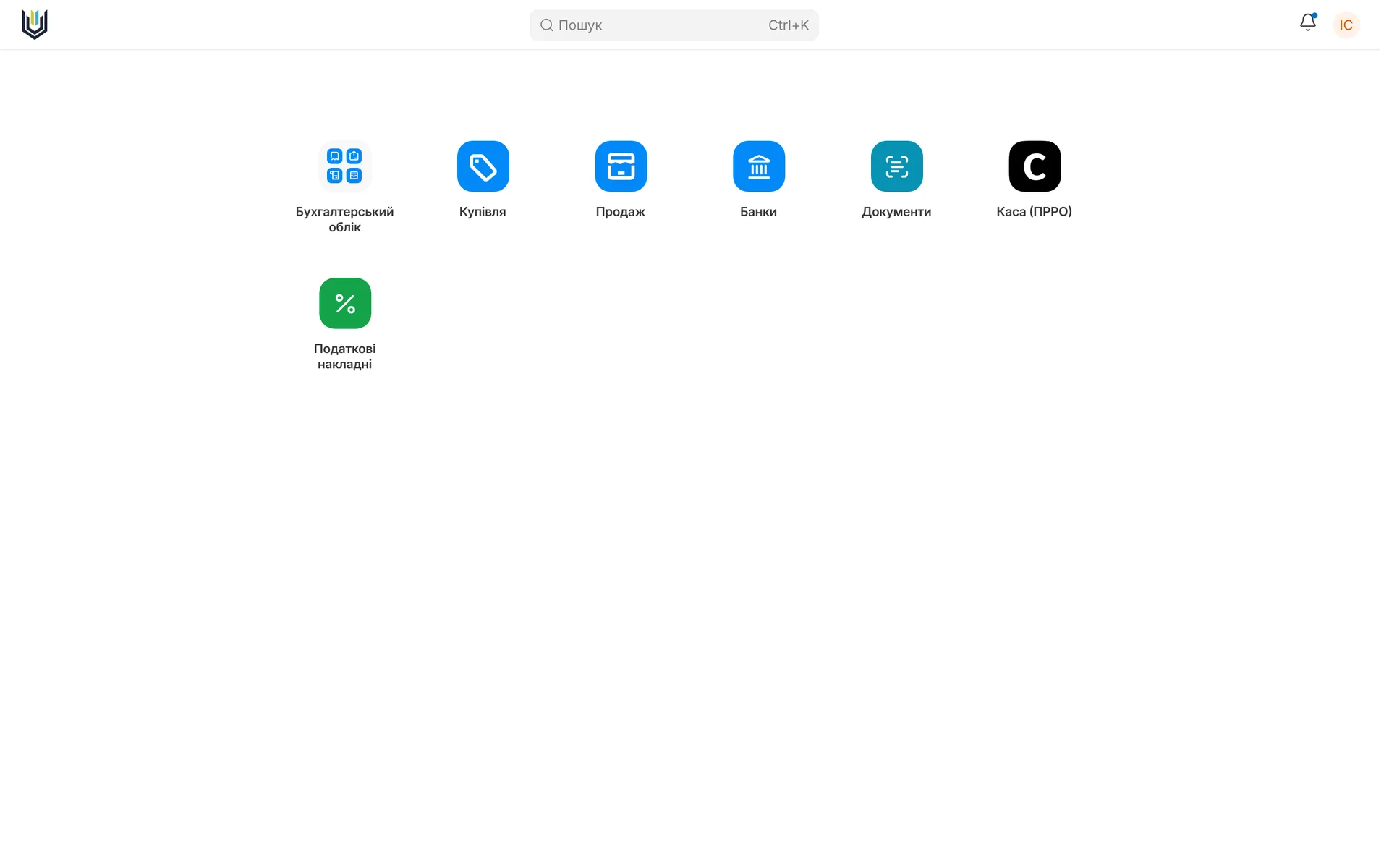
Accountant's desktop: accounting, purchasing, sales, banks, documents, cash desk and tax invoices.
- 04
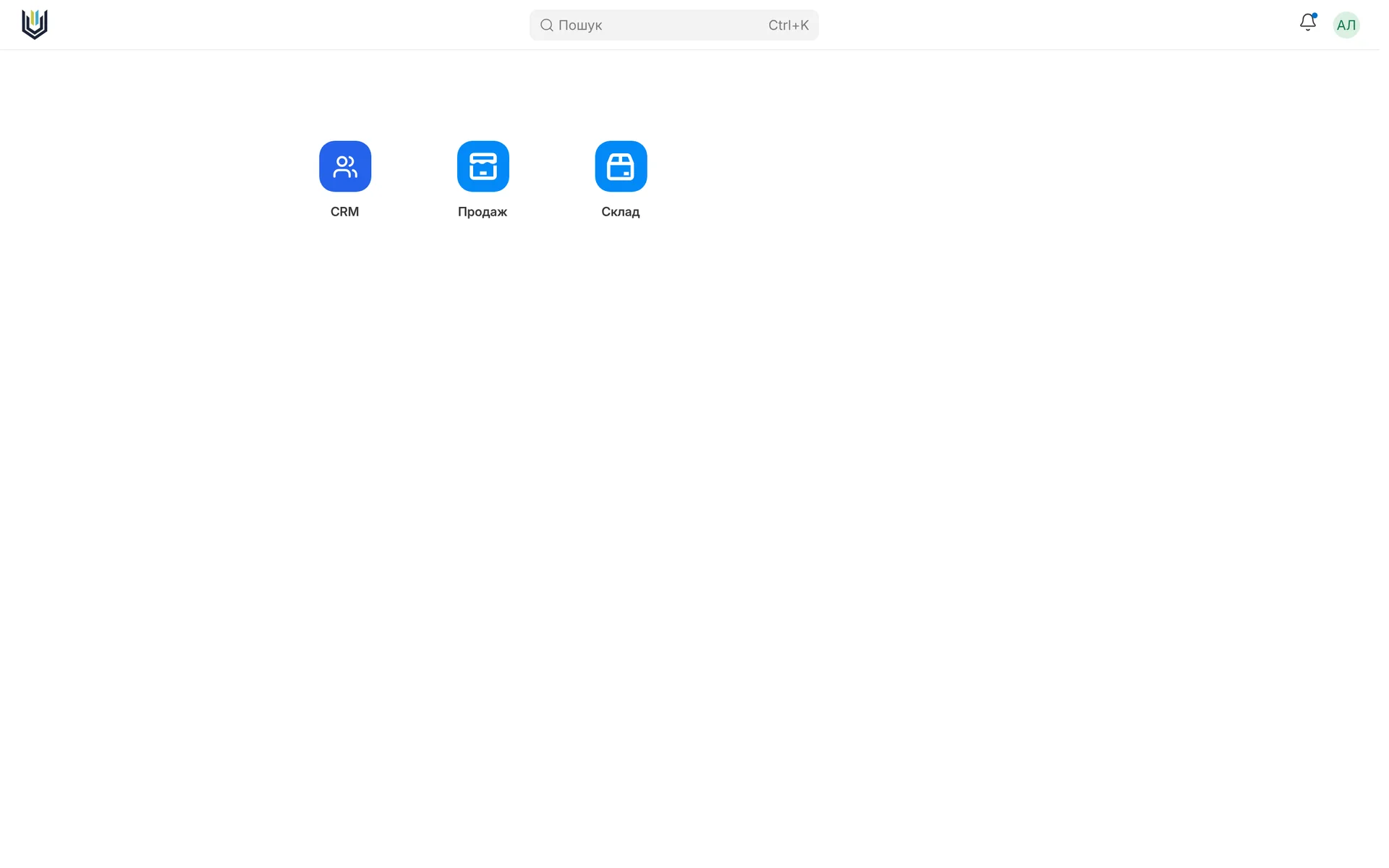
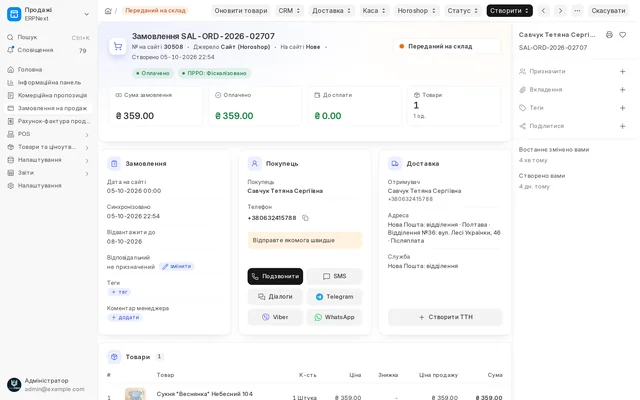
The manager sees only CRM, sales and warehouse: nothing extra, easy to get started.
- 05
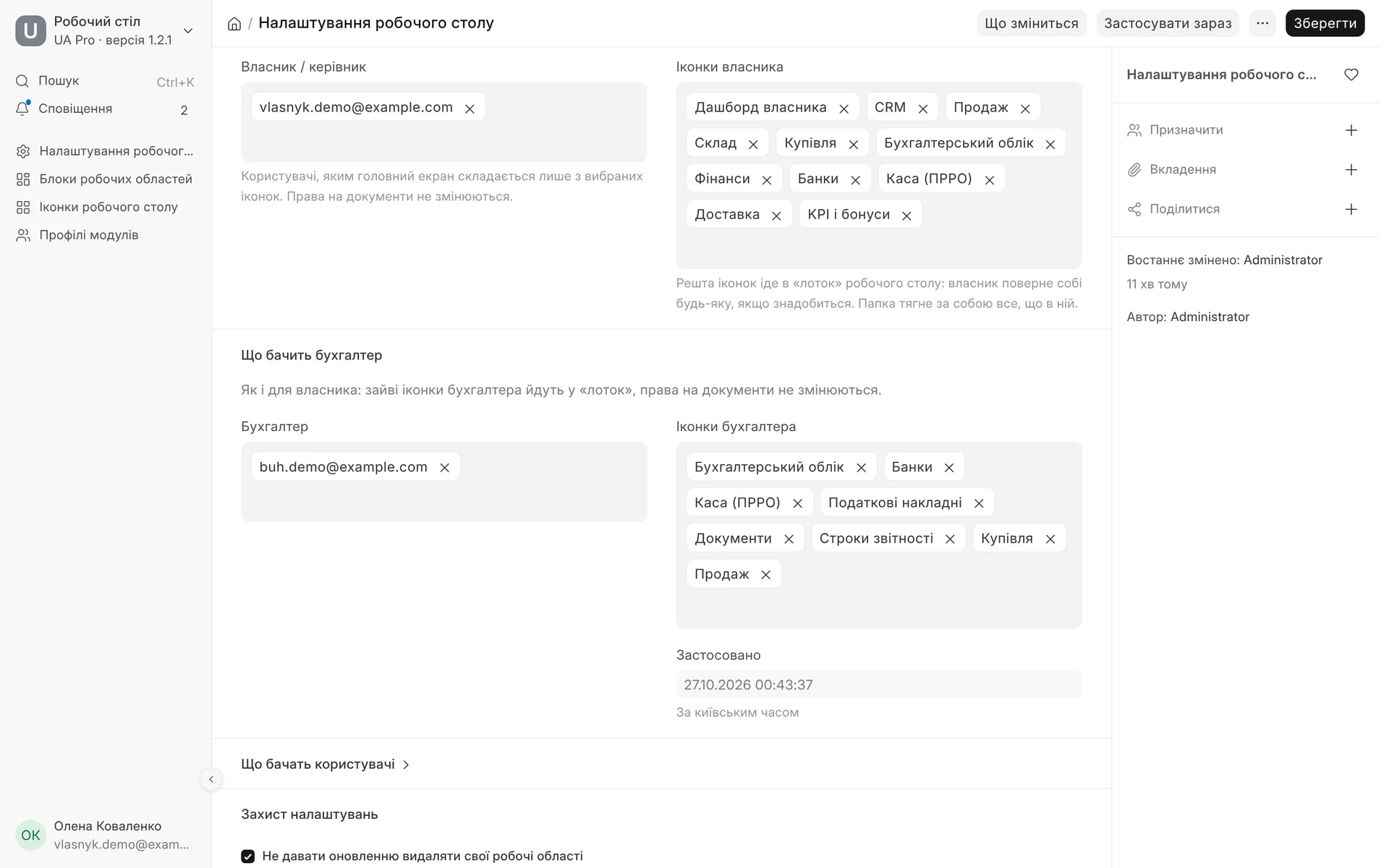
Desktop settings: for each role you choose the people and the icons, the rest goes to the "tray", and document permissions do not change.
02 / Who sees what
A home screen of its own for each role
- 01
Manager: only their own processes
You choose the managers and the icons they need. Everything else is hidden through roles, so a manager cannot bring back extras by accident. A folder stays if something inside it is visible.
- 02
Owner: the essentials first
The owner often has the same roles as the accountant and the warehouse, so their screen is made up of the selected icons. The rest goes to the "tray", where the owner can bring back any icon themselves.
- 03
Accountant: their own sections
Same as for the owner: their own set of icons, extras in the "tray", access to documents unchanged.
- 04
System sections for the administrator only
Builder, Data, Email, Integrations, System, Website, Users, Automation and the platform section are visible to no one but the administrator, not even the owner.
- 05
First icon
You set what comes first on the desktop, for example the owner's dashboard.
03 / Owner's dashboard
Key figures, charts and blocks on one screen
You choose what to show. The module creates the workspace, the sidebar and the icon under one name by itself.
- 01
Key figures
Metric cards the owner wants to see every day are picked from a list.
- 02
Charts
Any charts in the system are added to the dashboard from the settings, with no manual layout.
- 03
Full-width blocks
Below the figures, for example manager KPIs if the KPI module is connected, or the top customers table.
- 04
Your own name
The dashboard is named the way you like. Renaming it in the settings carries over the workspace, sidebar, icon and links.
- 05
Sidebar
Overview, sales, customer debts and profit and loss are there from the start. The module does not touch items you add yourself.
04 / Top customers
A table instead of a chart that cuts off names
Full name with a link: the customer name is shown in full, a click opens their card
Amount and share: how much the customer brought in and what share of sales they account for
Real sales only: posted invoices without returns
Your own period: for the last N months, 12 by default, up to 60
Number of rows: from 1 to 30 customers, 8 by default
Permissions respected: everyone sees only the customers and companies they have access to
Where to show it: you choose the workspaces; the table replaces the standard top customers chart in the same place
05 / How it works
From settings to a ready screen
- 01
Choosing people and icons
In "Desktop settings" (Налаштування робочого столу), the administrator specifies the managers, the owner, the accountant and what each of them sees.
- 02
What will change
A button shows the changes in advance and saves nothing: who will have which icons hidden and which roles will change.
- 03
Apply now
Changes take effect immediately, and a report on the last application stays in the settings.
- 04
After updates
After every system update the settings are applied again, and new module icons do not appear for managers without permission.
What the module does not do
The module controls what a person sees on the home screen, not their permissions: access to documents and reports is set by roles as before. It also protects your own workspaces and icons so that a system update does not delete them as "extra".
06 / About the module
Role-based desktop
A manager sees only their own processes, the owner sees their dashboard first; a table of the largest customers; settings survive updates.
Area: Base package. The module is switched on and off for each company separately, with no per-seat licences.
07 / Questions and answers
About "Role-based desktop"
Can a manager bring back hidden icons?
No. Icons outside their set are hidden through roles, not just moved to the "tray", so a manager cannot bring them back. For the owner and the accountant, extras go to the "tray", and they can bring back any icon themselves.
Do document access permissions change?
No. The module changes only what is visible on the desktop. What a person can open and post is still determined by their roles.
What happens to the settings after an ERP update?
Nothing gets lost. After every update the module reapplies the settings on its own and does not let the update delete your workspaces and icons.
Can we see the changes before they are applied?
Yes, the "What will change" (Що зміниться) button shows who will have which icons hidden and which roles will change, without saving anything. You apply them with a separate button.
What can go on the owner's dashboard?
Key figure cards, charts and full-width blocks, for example manager KPIs or the top customers table. Everything is chosen in the settings, and you set the dashboard name too.
Who sets up the desktop?
The administrator of your ERP, usually the owner or a responsible person. Other users see only the result.
Updated:
08 / Other modules
More modules on video
The same, on your data.
The screens were captured on a demo company. Send us a sample document or order and we will show this module on it.