01 / What the screens show
Screen by screen
Captions to the module screens: briefly what each one shows and why.
- 01
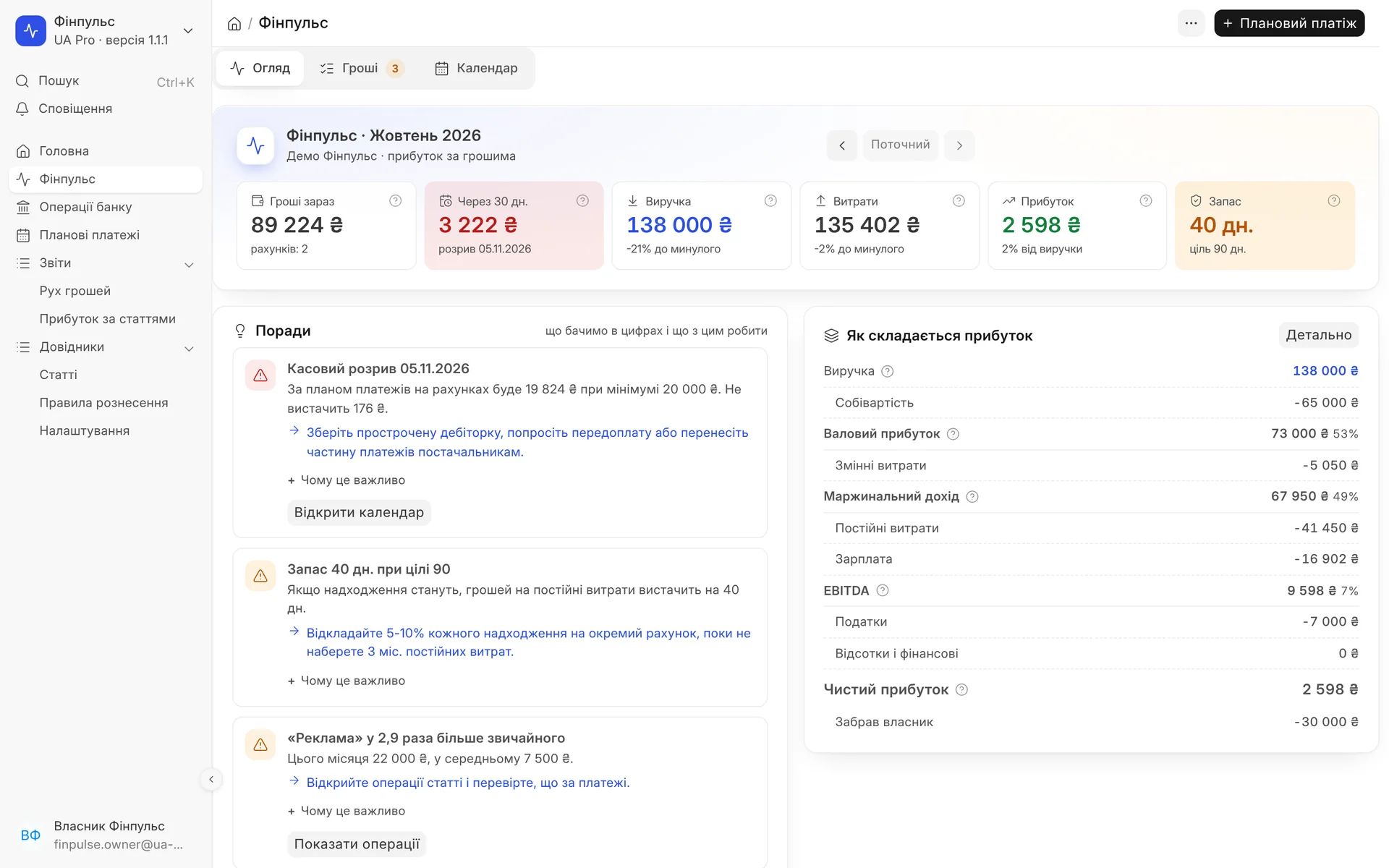
Monthly overview for the owner: money now, the balance in 30 days, revenue, expenses, profit and the reserve in days, advice with concrete actions and a profit breakdown from revenue to net.
- 02
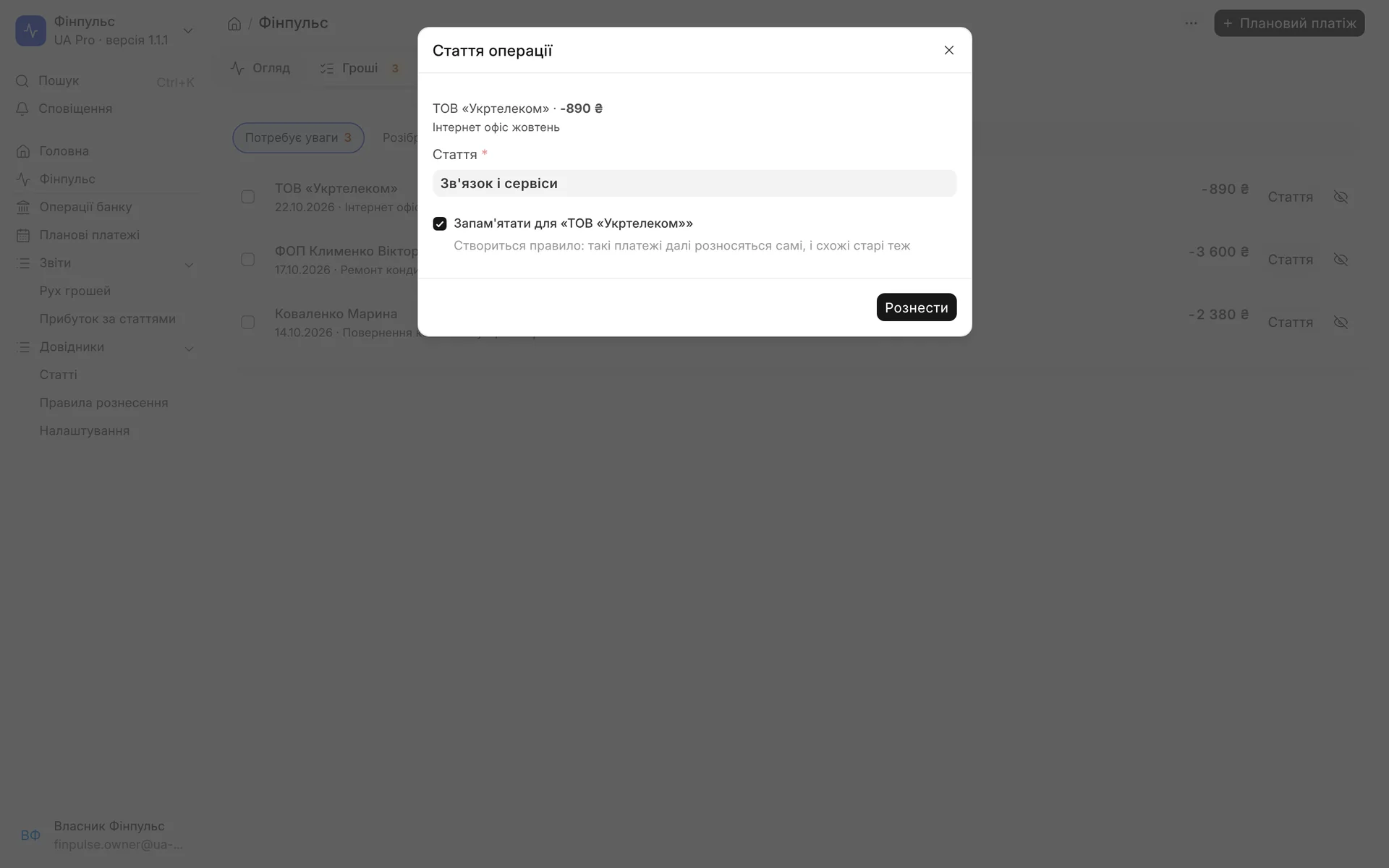
A statement transaction is assigned to a category in one click: a payment to Ukrtelecom goes to "Communications and services", and the "Remember" tick turns it into a rule for the future.
- 03
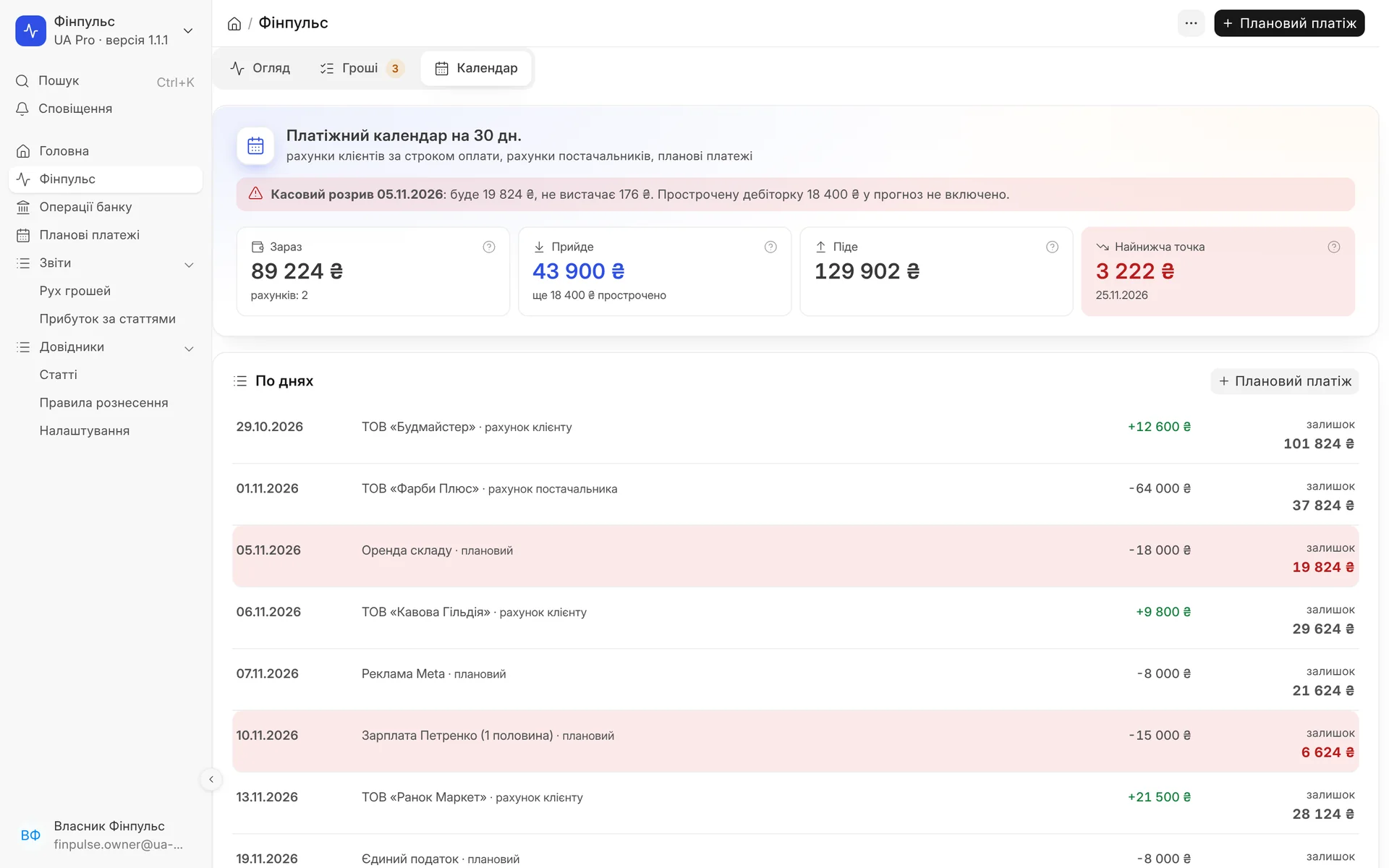
The 30-day payment calendar shows a cash gap on 05.11.2026 and the lowest balance point while there is still time to move a payment or bring in receipts.
- 04
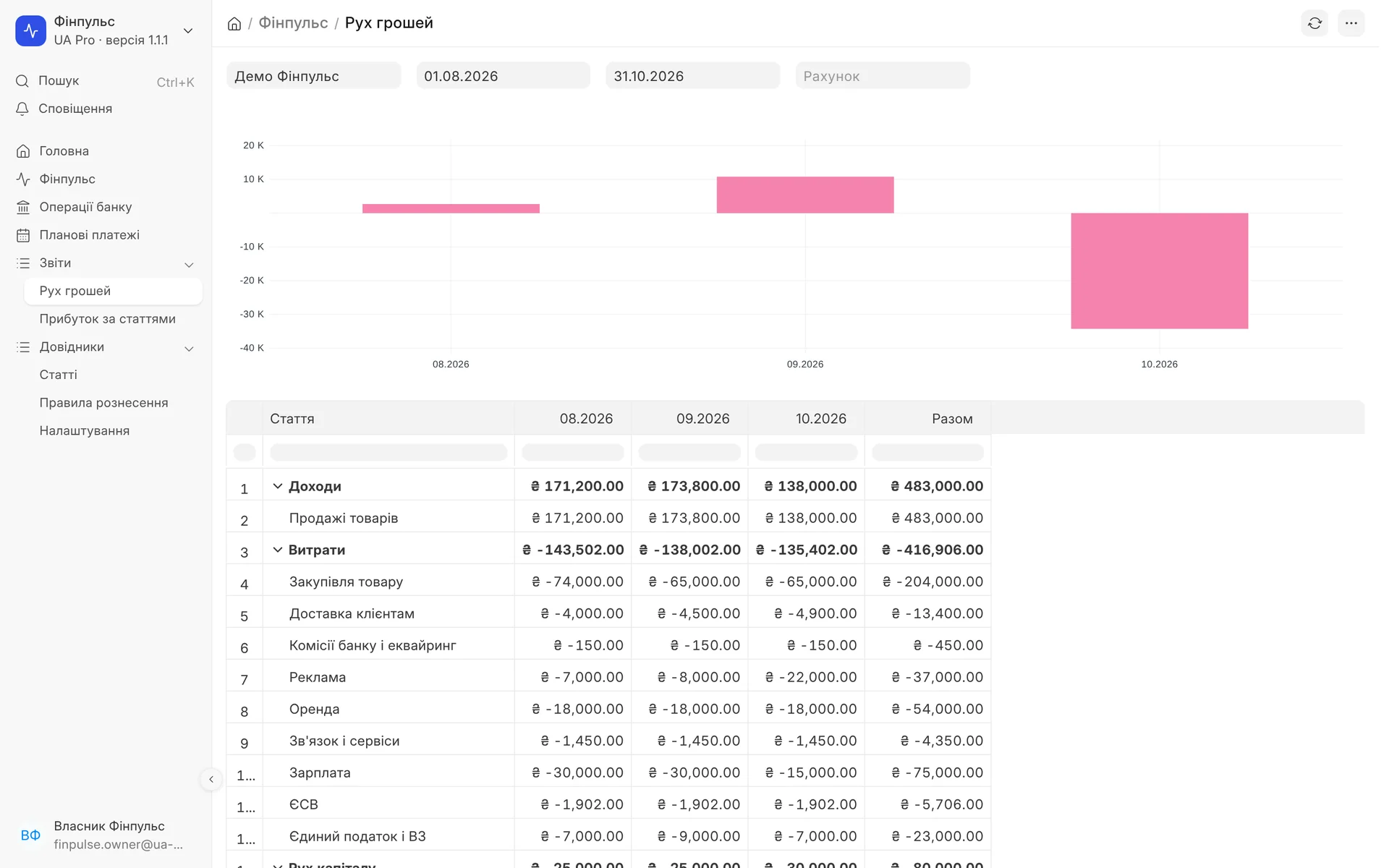
Cash flow by category and month for August to October: a chart and a table that show where the money goes.
- 05
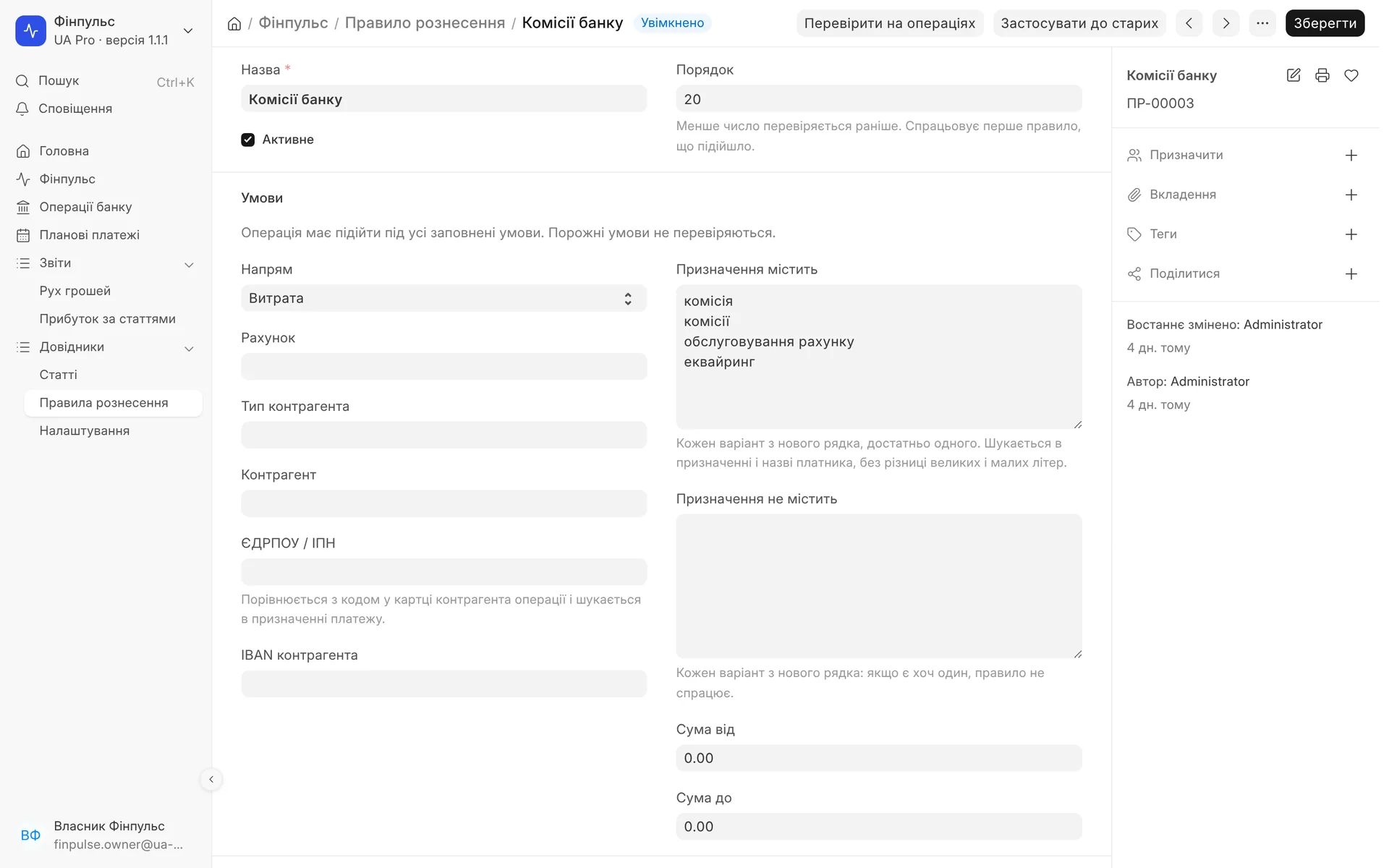
The "Bank fees" rule: conditions, a test on real transactions and applying it to old records so you do not allocate them by hand.
02 / Overview
What the owner sees in a minute
Next to every number there is a "?": a short explanation of what it means and why it is worth watching.
- 01
Cash now
The total across all accounts and cash desks. You enter an account balance once, then Finpulse calculates it itself from bank transactions.
- 02
Forecast and cash gap
The balance at the end of the horizon, taking into account invoices by due date and scheduled payments. If cash drops below the minimum balance, you see the date and the amount of the shortfall.
- 03
Revenue, expenses, profit
Figures for the month and the change in percent versus the previous one. You can scroll back through the months.
- 04
Runway in days
How many days the money will cover fixed costs if income stops, and the reserve target in months.
- 05
How profit is built
Steps: revenue, cost of goods, gross profit, variable costs, contribution margin, fixed costs and payroll, EBITDA, taxes and interest, net profit.
- 06
Largest expenses
The 5 largest expense categories of the month: the first place to look if profit has dropped.
03 / Tips
What we see in the numbers and what to do about it
Each tip has three parts: what happened, why it matters and a specific action. Thresholds are changed in the settings.
Cash gap: the date when cash will fall below the minimum balance, and how much will be missing
Low reserve: cash for fixed costs is below the reserve target (3 months by default)
Low margin: out of every UAH 100 of sales, less than the threshold remains after purchasing, delivery and fees
Month in the red: expenses exceed revenue, with a hint on which categories to review
Expense spike: a category is 2 times higher than the average of previous months
Overdue receivables: how much you are owed past the due date and who owes the most
Customer dependence: one customer brought 40% of revenue or more over 3 months
Owner took out more: payouts to the owner exceed net profit, meaning money is coming out of working capital
Uncategorised transactions: a noticeable share of cash flow has no category, so profit is not accurate yet
Accounts without a balance: a reminder to enter the opening balance so that "Cash now" and the forecast are complete
04 / How it works
From bank statement to tips
- 01
Accounts and balances
You add accounts and cash desks and enter the balance on a date once. The company, minimum balance, forecast horizon and tip thresholds are set in the settings.
- 02
Transactions are categorised automatically
Transfers between your own accounts are found by IBAN and matched into a pair. Then rules apply, the history of identical decisions for the counterparty, and a category by counterparty type: customer, supplier, employee.
- 03
Review only what needs attention
The "Cash" (Гроші) tab keeps only the transactions for which automation found no category. You can categorise them in bulk, and "Remember" (Запам'ятати) creates a rule and categorises similar older transactions too. Automation never overrides a manual decision.
- 04
Calendar and scheduled payments
Days with events and the balance for each day. Rent, taxes or a loan are added as a scheduled payment repeating weekly, monthly, quarterly or yearly. "Paid" (Сплачено) links a bank transaction and moves the payment to the next period.
05 / Categories and rules
Ready-made categories and rules you can adjust
- 01
Category tree
25 starter categories in groups: income, expenses, capital movements, technical. Each category has a description of what belongs to it and a class for the profit figures.
- 02
Capital movements kept separate
Owner contributions and payouts, receiving and repaying a loan, transfers between your own accounts and currency exchange do not go into profit.
- 03
Rule conditions
Direction, account, counterparty, EDRPOU or individual tax number (IPN), IBAN, words that are or are not in the payment purpose, amount from and to.
- 04
Rule action
Assign to a category and a project, mark as a transfer between your own accounts, or exclude. A rule can be applied to older transactions after a review.
- 05
Starter rules
Taxes to the budget, the single social contribution (ESV) and bank fees are categorised from day one. They can be changed or turned off.
- 06
Rule statistics
How many times a rule fired and when it last did: you can see which rules work and which are unnecessary.
06 / Reports
Cash flow and profit by category
Cash flow: categories in rows, months in columns
Profit by category: step by step from revenue to net profit
Cash basis or accrual basis: profit based on actual payments or on accounting entries, chosen in the settings
Roles: the owner sees and configures everything, the finance officer reviews transactions and reads the settings
Module limits
Finpulse is management accounting for the owner: cash, forecast, profit and tips. It does not produce tax or financial reporting. Bank transactions come from a connected bank or an imported statement, so the accuracy of the figures depends on whether all accounts are added and reviewed.
07 / About the module
Finpulse: financial literacy for your business
Money right now across all accounts, a cash gap forecast a month ahead, profit by line (revenue, margin, EBITDA, net) and advice in plain words. Bank transactions are allocated to categories automatically: transfers between your own accounts, rules, the counterparty's history.
Area: Accounting and taxes. The module is switched on and off for each company separately, with no per-seat licences.
08 / Questions and answers
About "Finpulse: financial literacy for your business"
How is Finpulse different from a cash flow spreadsheet in Excel?
There is no need to transfer data: bank transactions, customer and supplier invoices are already in the ERP. Transfers between your own accounts, taxes, fees and recurring counterparty payments are categorised automatically, and the forecast and tips are recalculated on their own.
How much time does manual review of transactions take?
You only review what automation did not recognise, and usually only once. The "Remember" button creates a rule, after which such payments are categorised automatically, and after several identical decisions for a counterparty Finpulse picks up the category from history.
How is the cash gap forecast calculated?
Starting from the cash you have now, customer invoices are added by due date, and supplier invoices and scheduled payments are subtracted. If the balance on any day falls below the minimum you set, Finpulse shows that day and the amount of the shortfall. The default horizon is 30 days and can be changed.
Won't transfers between my own accounts distort profit?
No. A transfer is recognised by the IBANs of your own accounts, both sides are matched into a pair and go to a technical category that is not included in profit. Loans and the owner's money are kept separate in the same way.
Where do bank transactions come from?
From a bank connected to UA Pro ERP or from an imported statement. Cash desks that are not run through a bank are calculated from accounting data.
Who in the company sees Finpulse?
There are two roles: the owner sees and configures everything, the finance officer reviews transactions and sees the settings without the right to change them. The chief accountant and the system administrator also have access, other employees do not see the module.
Updated:
09 / Other modules
More modules on video
The same, on your data.
The screens were captured on a demo company. Send us a sample document or order and we will show this module on it.