01 / What the screens show
Screen by screen
Captions to the module screens: briefly what each one shows and why.
- 01
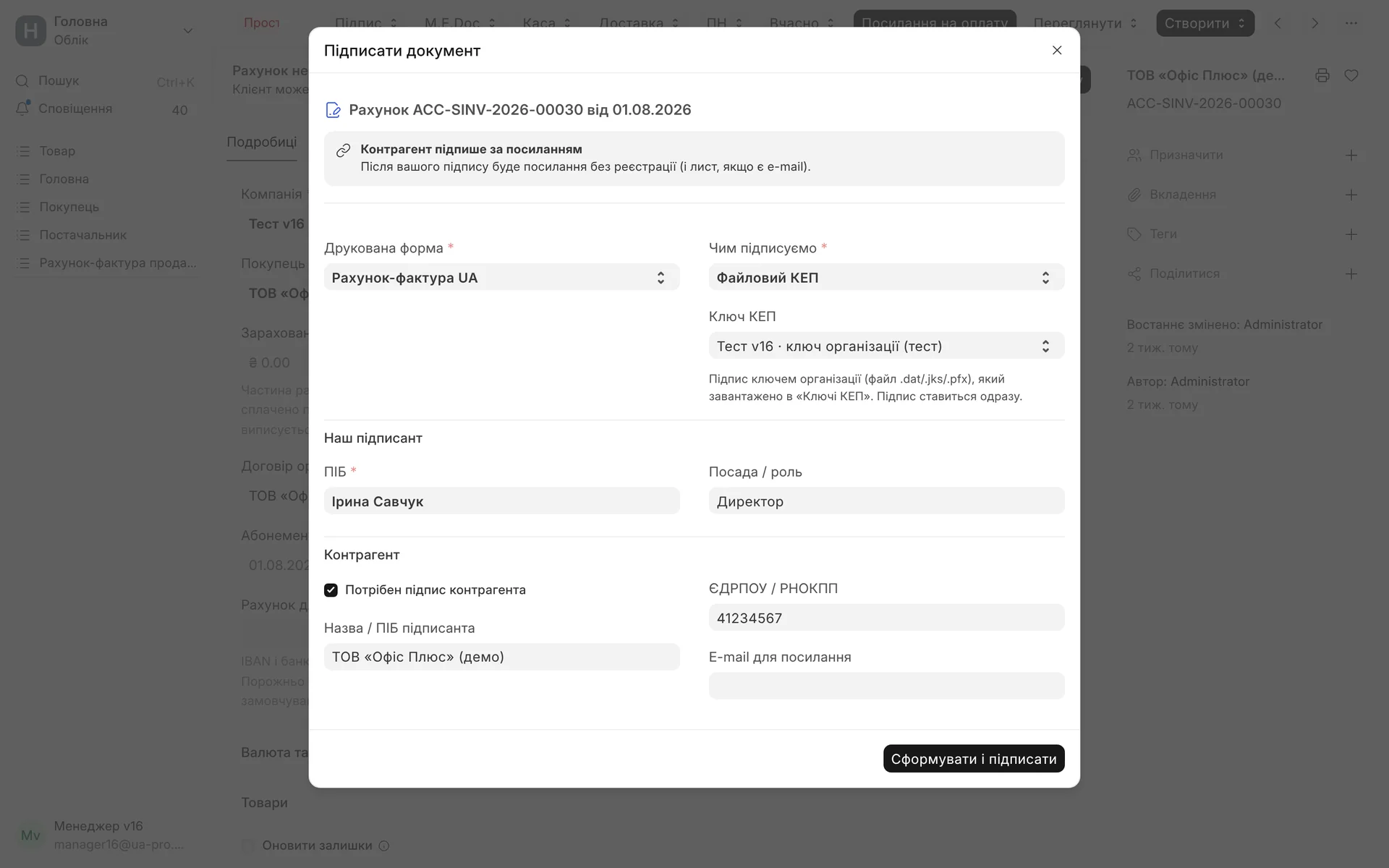
Signing from an invoice: the print form, the organisation's file key, our signer and the counterparty who will receive the signing link.
- 02
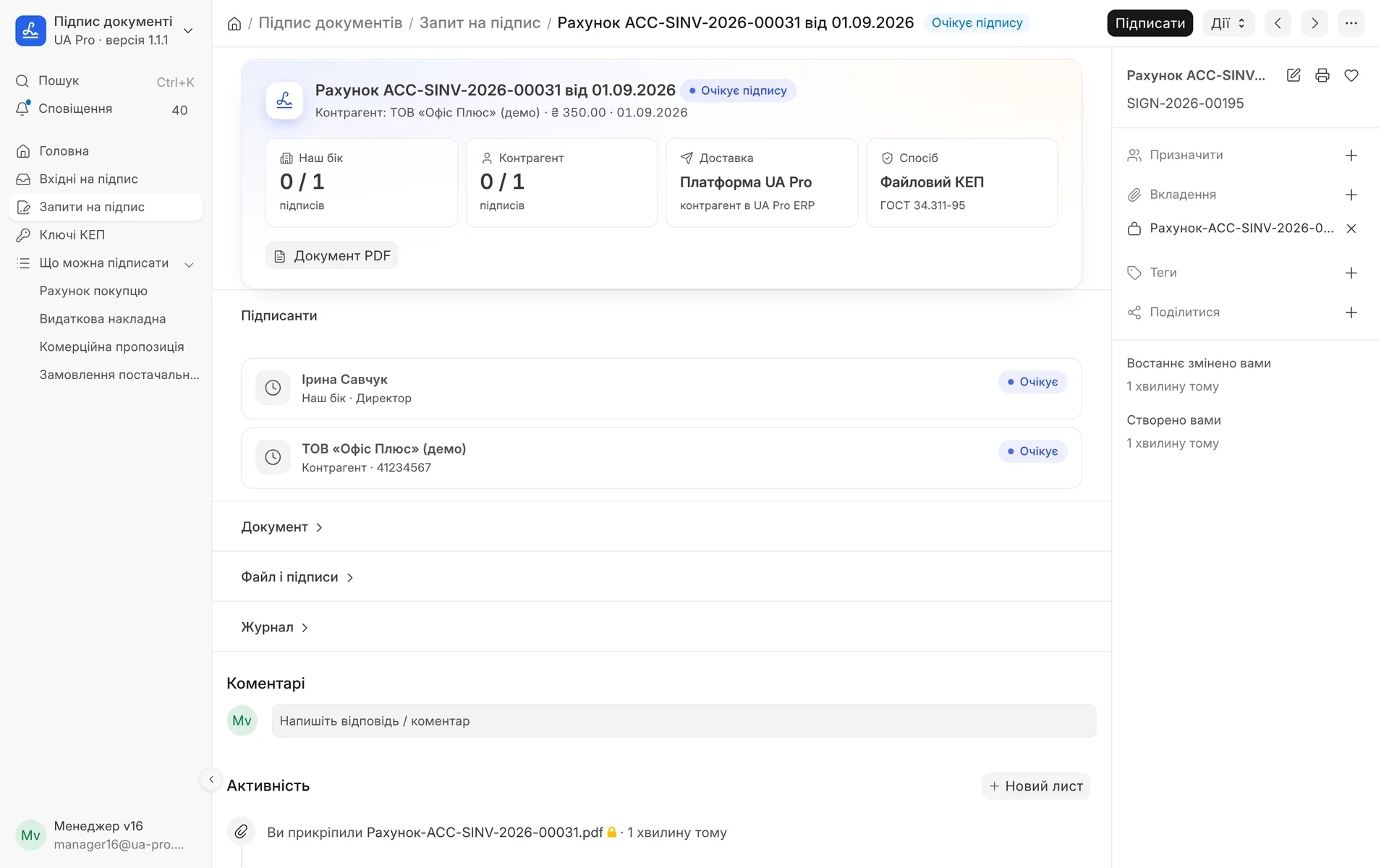
The signing request shows how many signatures our side and the counterparty have made, how the document was delivered and which method we sign with.
- 03
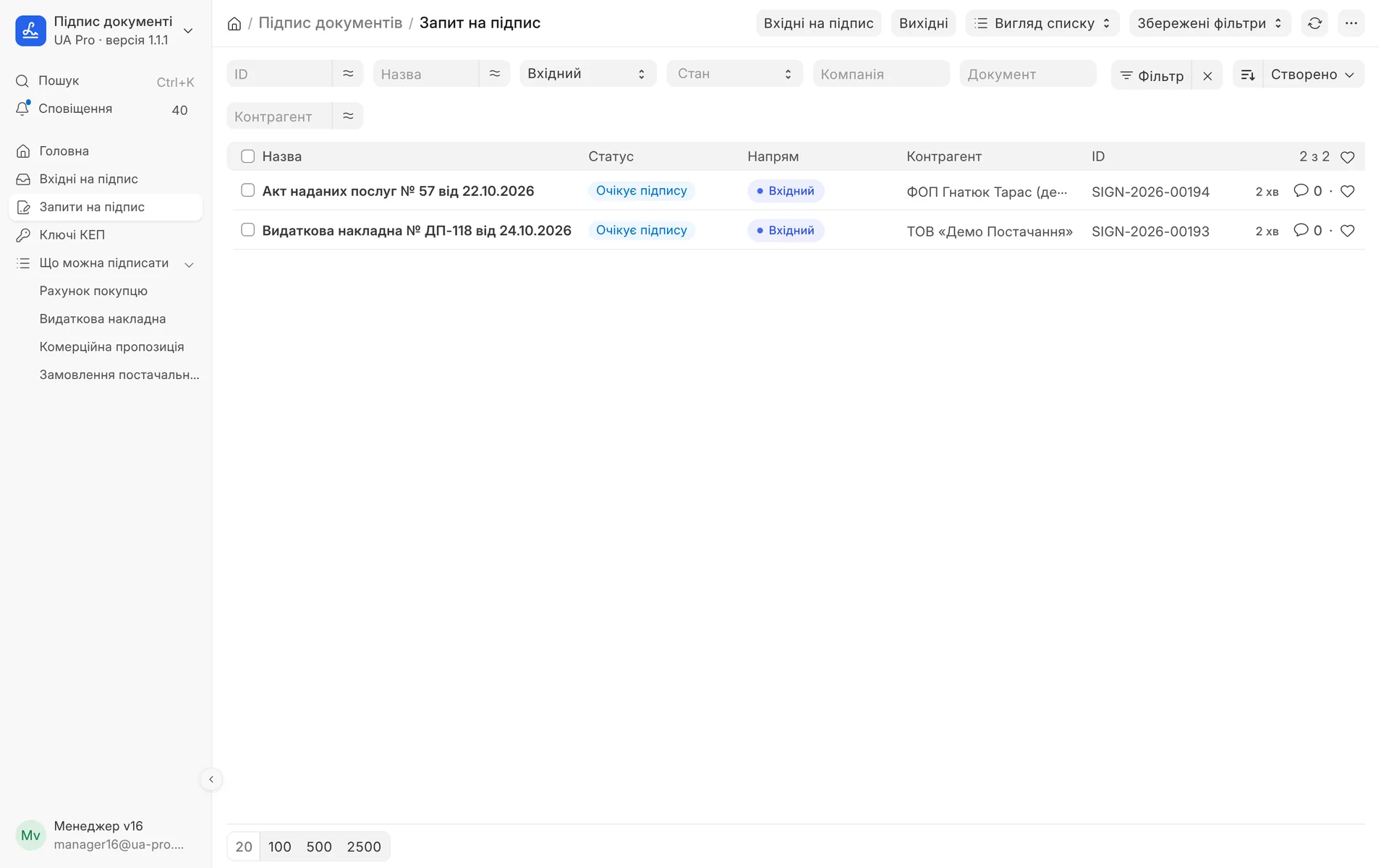
Inbox for signing: delivery notes and acts from suppliers in one list with status and counterparty.
- 04
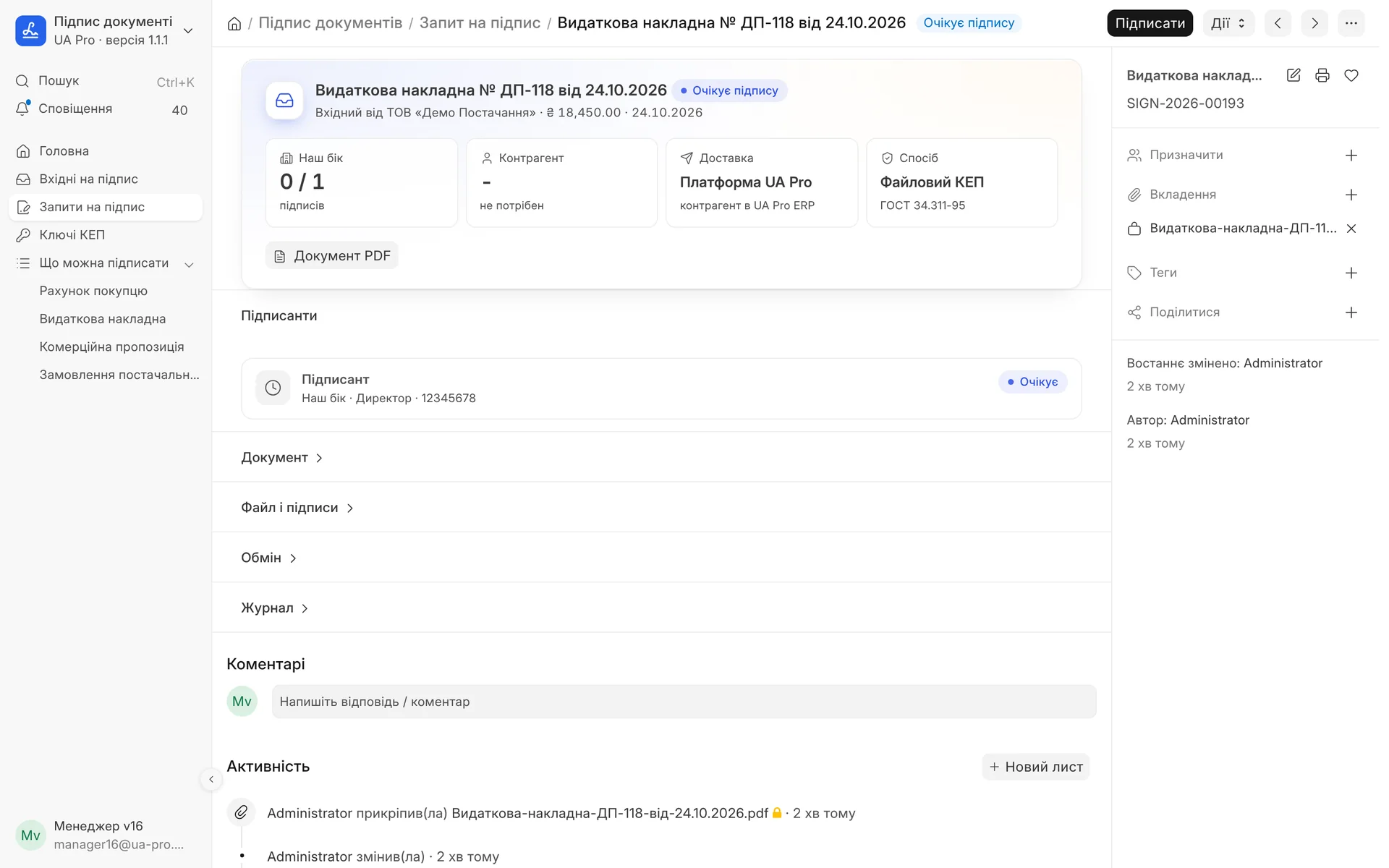
An incoming delivery note from a supplier with the document PDF: our director signs it with the "Sign" button.
02 / What gets signed
A "Sign" button in sales and purchasing documents
What gets signed is a PDF from the print format you choose before signing: exactly what the counterparty will see.
Invoice: invoice to a customer
Delivery note: shipment to a customer
Quote: offer to a customer
Purchase order: purchasing
Contract: lease contract
03 / How it works
From document to signed archive
- 01
Generate and sign
In the document you click "Sign" (Підпис), choose the print format, the QES key and the signer on your side. If the counterparty's signature is needed, their name and EDRPOU are filled in from the document.
- 02
Signing with the organisation's key
The signature is applied right away with the file key uploaded to the system. Signers go in turn: your side first, then the counterparty.
- 03
Automatic verification
Each signature is checked against the PDF: whether it matches the document, who the certificate holder is, RNOKPP or EDRPOU, KNEDP, signing time and whether the certificate was valid. If something is wrong, the signature is rejected and you see the reason.
- 04
Stamped PDF and archive
The document gets a "Signature sheet" (Аркуш підписів) as its last page. Next to it are stored the p7s files of each signer and a ZIP archive: original, signatures, stamped PDF and verification report.
04 / QES keys
The organisation's key under control
- 01
Uploading a key
A .dat, .jks or .pfx key file and a password. The module reads the certificate right away: holder, RNOKPP, EDRPOU, KNEDP, serial number and validity period.
- 02
Encrypted storage
The key and password are stored encrypted in the system. Only the head of accounting and the administrator can upload keys.
- 03
Who can sign
For each key you set a list of users allowed to sign with it. Everyone else sees the document but cannot sign it with this key.
- 04
Protection against mistakes
A key with an expired certificate will not sign a document. A key of a different organisation than the document's company will not sign either.
- 05
KNEDP certificates
If the key file has no certificates, the module will prompt you to add .cer files from your KNEDP's website.
- 06
Document changed after generation
If the document was changed or cancelled after the PDF was generated, the request shows a warning, and a cancelled document cannot be signed.
05 / Exchange with counterparties
A counterparty in UA Pro ERP signs on their side
If the counterparty's company with that EDRPOU also works in UA Pro ERP, the document goes straight to it after your signature.
- 01
Incoming for signature
The counterparty sees the document in their ERP under "Incoming for signature", checks your signature and signs with their key or declines with a reason.
- 02
Signed by both
The counterparty's signature comes back to you and is verified against your PDF. The request gets the status "Signed by both" (Підписано обома), and the signature sheet and archive are updated.
- 03
Incoming document in one click
From the received document the counterparty creates a draft purchase invoice or purchase receipt. The supplier is found by EDRPOU, items by supplier code, code or name. Nothing is posted without a person.
- 04
What is transferred
The document and signatures travel between your systems, and each side checks that the PDF has not been changed.
Module limits
The module signs documents with the organisation's QES file key. A return signature from the counterparty arrives if the counterparty also works in UA Pro ERP. To other counterparties you send the PDF with the signature sheet and the p7s files the usual way: a CAdES signature can be verified at czo.gov.ua.
06 / About the module
Document signing (QES)
Sign invoices, delivery notes, quotations and contracts with a qualified electronic signature (KEP) right from the ERP: a QR code for the signer, signature verification, a PDF with a signature stamp and an archive with p7s. Counterparties on UA Pro ERP receive the document in their inbox and sign it on their side.
Area: Accounting and taxes. The module is switched on and off for each company separately, with no per-seat licences.
07 / Questions and answers
About "Document signing (QES)"
What key do I need to sign?
A QES file key of the organisation or its director in .dat, .jks or .pfx format from any KNEDP, together with the password. If the certificates are not built into the key file, they are added as .cer files from the KNEDP website.
Is it safe to store the key in the system?
The key and password are stored encrypted, and only the head of accounting and the administrator can upload them. Only the people you listed in the key's user list can sign with it.
How will the counterparty verify my signature?
They receive a PDF with a signature sheet and a p7s file in CAdES format. The signature can be verified at czo.gov.ua. If the counterparty works in UA Pro ERP, their system verifies the signature itself when the document arrives in their incoming.
What happens if the document was changed after signing?
A specific PDF is signed, and each signature is verified against exactly that PDF. If the document was changed or cancelled after generation, a warning appears on the request, and a cancelled document can no longer be signed.
Can the counterparty refuse to sign?
Yes, a counterparty in UA Pro ERP can decline and give a reason. You will see the refusal and the reason on the request, and the document gets the status "Rejected" (Відхилено).
Which documents can be signed?
An invoice, a delivery note, a quote, a purchase order and a lease contract. What gets signed is a PDF from the print format you choose before signing.
Updated:
08 / Other modules
More modules on video
The same, on your data.
The screens were captured on a demo company. Send us a sample document or order and we will show this module on it.